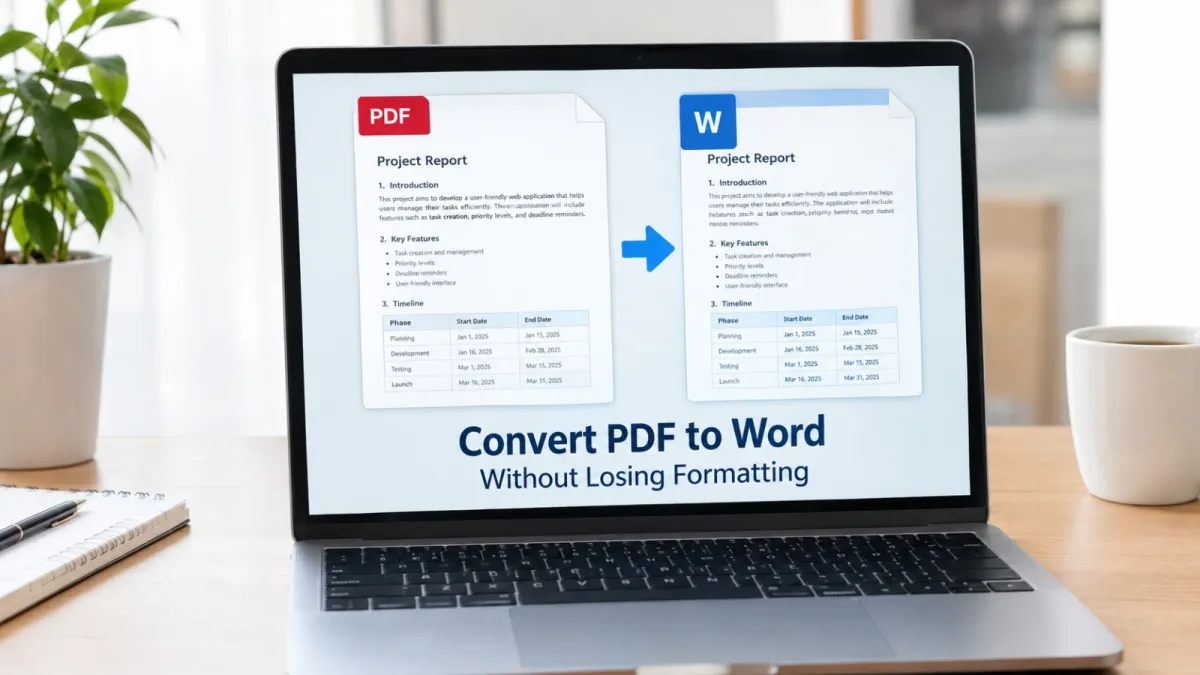
Converting a PDF to Word should make a document easier to edit—not turn a neatly formatted report into a collection of misplaced tables, broken paragraphs, and uneven spacing.
If you need to update a business report, edit an academic assignment, reuse a table, or correct a few paragraphs, converting your PDF into an editable Word document can save time. The challenge is preserving the original layout, including fonts, headings, images, columns, tables, page numbers, and spacing.
The good news is that you can often convert a PDF to Word with very little formatting loss. The results depend on how the original PDF was created, whether its text is selectable, and how complex its layout is.
In this guide, you will learn how to convert PDF to Word without losing formatting, which methods to use for different document types, how to handle scanned PDFs, and how to fix common conversion problems.
Quick solution: Use VelixaKit PDF to Word to convert a PDF into an editable Microsoft Word DOCX file. After conversion, open the result in Word and check its tables, fonts, images, and page layout before using it.
Why Does PDF Formatting Change When Converting to Word?
PDF and Word documents are designed for different purposes.
A PDF is primarily intended to preserve a document's appearance across devices. A Word document is designed for editing and reflowing content as text, images, and page dimensions change.
During conversion, software must interpret the PDF's text, fonts, positions, images, and other elements and reconstruct them as editable Word content. That reconstruction is not always perfect.
Several factors can affect the result.
1. Complex tables and columns
PDFs may position text visually without storing it as a conventional Word table. A converter might interpret the text as separate paragraphs, causing columns to shift or cell boundaries to disappear.
2. Fonts that are missing or embedded
If a PDF uses a font that is unavailable in Word, the application may substitute another font. Even a small font change can affect line breaks, paragraph heights, and page count.
3. Scanned pages
A scanned PDF may contain images of printed pages rather than actual text. The converter needs optical character recognition (OCR) to recognize the characters before they can be edited.
4. Images, charts, and text wrapping
Documents containing diagrams, logos, charts, or images positioned beside text can be difficult to reconstruct. Word may place an image differently or wrap surrounding paragraphs in a new way.
5. Headers, footers, and page breaks
Page numbers, footnotes, headers, and footers may be positioned differently after conversion. A document that originally had ten pages might have more or fewer pages in Word.
Important: No conversion method can guarantee identical formatting for every PDF. The best approach is to choose the right converter for the document and verify the result.
How to Convert PDF to Word Without Losing Formatting Online
For a straightforward PDF with selectable text, an online converter is often the quickest option.
Step 1: Open the VelixaKit PDF to Word tool.
Visit VelixaKit PDF to Word.
This tool is designed to convert PDF documents into editable Microsoft Word DOCX files.
Step 2: Select your PDF file.
Choose the PDF you want to convert and follow the tool's on-screen instructions.
Before uploading, make sure you have selected the correct document. If it contains confidential business, financial, legal, or personal information, review the service's privacy policy before submitting it.
Step 3: Start the conversion.
Run the conversion according to the instructions displayed by the tool. Processing time may vary depending on the file size, number of pages, and document complexity.
Step 4: Download the Word document.
When processing is complete, download the resulting DOCX file and open it in Microsoft Word or another compatible word processor.
Step 5: Check the formatting.
Before editing or sharing the document, review these elements:
- Headings: Confirm that headings and subheadings appear in the correct order.
- Tables: Check column alignment, borders, merged cells, and values.
- Fonts: Look for unexpected substitutions or changes in font size.
- Images: Verify that logos, charts, and illustrations remain in the correct positions.
- Paragraphs: Check line spacing, indentation, and text alignment.
- Page layout: Review page size, margins, page breaks, headers, and footers.
- Special characters: Check mathematical symbols, currency signs, accents, and other nonstandard characters.
For a long report, inspect the first page, several pages in the middle, and the final pages. Pay particular attention to pages containing tables, charts, or multiple columns.
How to Preserve Tables When Converting PDF to Word
Tables are among the most challenging elements to preserve during PDF conversion. A table may look correct in a PDF while its content is stored as individually positioned text rather than a structured grid.
Use the following techniques to improve the result.
Choose a suitable source PDF.
If possible, use the original digitally generated PDF rather than a low-resolution scan. Text-based PDFs generally provide better starting material for conversion because the characters are already encoded as text.
Keep the original page structure.
If the table spans several pages, check that its headings, rows, and column order remain correct. Pay particular attention to repeated headers and rows split across page boundaries.
Check column widths and alignment.
After conversion, compare the Word table with the original PDF. Look for columns that have become too narrow, values that have moved into adjacent cells, or text that wraps unexpectedly.
Avoid changing fonts too early.
Changing the font before correcting the table structure may create additional line breaks and page-layout problems. First check the table's rows and columns, then adjust the font and spacing if needed.
Use Excel when the main goal is data analysis.
If your PDF mainly contains financial statements, invoices, or other tabular data, converting it directly to Word may not be the best choice.
Instead, try VelixaKit PDF to Excel, which is designed to extract PDF tables into spreadsheet cells. Review the numbers, dates, decimal points, and totals before using the spreadsheet for calculations or reporting.
Use PDF to Word when you need an editable document; use PDF to Excel when you primarily need structured data.
How to Convert a Scanned PDF to an Editable Word Document
A scanned PDF is different from a text-based PDF. It contains images of pages, so the words may not be selectable or searchable.
To make scanned text editable, you generally need OCR.
OCR stands for optical character recognition. It analyzes an image of text and attempts to identify the letters, numbers, and words it contains.
Follow this workflow
- Open VelixaKit OCR PDF to recognize text in a scanned PDF.
- Follow the tool's instructions to process the document.
- Review the recognized text for missing characters, incorrect words, and misplaced punctuation.
- If you need a Word document, use VelixaKit PDF to Word where appropriate and check the resulting layout.
- Compare the final document with the original scan.
OCR accuracy depends on scan resolution, contrast, page rotation, language, and the quality of the original document.
For better results, use clear scans with straight pages and readable text. Handwriting, faded printing, unusual fonts, and complex tables may require additional manual correction.
Tip: OCR improves text recognition, but it does not automatically guarantee that the original layout will be recreated perfectly.
Alternative Methods for Converting PDF to Word
An online converter is convenient, but other methods may be more appropriate depending on your software, privacy requirements, and document complexity.
Method 1: Open the PDF directly in Microsoft Word.
Microsoft Word can convert many PDFs into editable Word documents.
- Open Microsoft Word.
- Select the option to open a file and choose your PDF.
- Read the conversion prompt and continue.
- Let Word create an editable document.
- Review the formatting and save the result as a DOCX file.
This method is particularly useful for PDFs that primarily contain text. Microsoft notes that the conversion process works best with documents that are mostly text; complex layouts may not match the original exactly.
For official instructions, see Microsoft Support: Open PDFs in Word.
Method 2: Use Adobe Acrobat's PDF export feature.
Adobe Acrobat provides tools for exporting PDF content into Microsoft Word formats.
A typical workflow is to open the PDF in Acrobat, choose the export or convert option, select Microsoft Word as the output format, and save the resulting file.
The available features depend on the Acrobat product and subscription. Review the output before editing or sharing it.
See Adobe Acrobat's PDF-to-Word guidance for further information.
Method 3: Use an online PDF-to-Word converter.
A browser-based converter can be useful when you want to convert a document without installing desktop software.
Open VelixaKit PDF to Word, select your file, follow the conversion steps, and inspect the DOCX output.
Online conversion is convenient, but check the service's file-handling and privacy practices before uploading sensitive documents.
Which PDF-to-Word Method Should You Choose?
The best method depends on your document and what you want to do with it.
| Document type or requirement | Suggested approach |
|---|---|
| Simple PDF with selectable text | Online converter or Microsoft Word |
| Report with several tables | Convert, then inspect each table carefully |
| Scanned document | Use OCR, then convert or edit the recognized text |
| PDF containing financial tables | Consider PDF to Excel if you need structured data |
| Document with complex graphics | Try a suitable converter and compare the output page by page |
| Confidential document | Review privacy requirements and consider an approved local workflow |
| PDF that only needs a few annotations | Consider Edit PDF instead of converting the whole document |
If the PDF only needs a small annotation or highlight, conversion may be unnecessary. For those tasks, a PDF editing utility may be more practical.
How to Fix Common PDF-to-Word Formatting Problems
Even with a suitable converter, some documents require a little cleanup.
Problem: The table columns are misaligned.
Why it happens: The converter may have reconstructed the table incorrectly or interpreted spaces as column boundaries.
What to do: Check the row and column structure in Word. Rebuild the affected table if necessary, and compare key values with the source PDF.
Problem: The document has too many pages.
Why it happens: Differences in fonts, margins, line spacing, and paragraph wrapping can change the page count.
What to do: Compare the page size and margins, then check font substitutions and paragraph spacing. Avoid reducing the font size excessively just to match the original page count.
Problem: Images have moved.
Why it happens: Word may interpret image positioning and text wrapping differently from the PDF layout.
What to do: Adjust the image's wrapping and positioning settings in Word. For documents where visual appearance matters more than editability, consider retaining the PDF as the final version.
Problem: The text is garbled or missing.
Why it happens: The source may be a scan, have an unusual font encoding, or contain text that the converter cannot interpret correctly.
What to do: Try OCR for scanned pages, improve the scan quality if possible, or use another conversion method. Verify names, dates, amounts, and other important details against the original.
Problem: The converted document cannot be edited properly.
Why it happens: Some converters preserve the appearance by placing content in text boxes or using other layout structures. Some PDFs also contain scanned images rather than editable text.
What to do: Check whether the text is selectable in the original PDF. If it is a scan, use OCR. If the converted layout is too complex, consider recreating the affected section in Word instead of trying to repair every element.
Problem: The PDF contains a password.
Why it happens: The document may be encrypted or restricted.
What to do: If you own the file or have authorization, obtain the necessary password or permissions before conversion. Do not attempt to bypass access controls on documents you are not authorized to modify.
Tips for Maintaining Formatting After Conversion
The conversion process is only part of the job. These habits can reduce the amount of manual correction needed.
- Keep an untouched copy of the original PDF. You can refer back to it whenever the conversion changes the layout.
- Use the right output format. DOCX is appropriate for most modern Word editing workflows.
- Check fonts and page settings. Font substitutions and margin differences can cause major layout changes.
- Review complex tables separately. Check values, headings, borders, and cell alignment.
- Use OCR for image-based text. Do not expect ordinary text extraction to work reliably on a scan without recognition.
- Proofread important content. Pay special attention to numbers, dates, formulas, names, and legal wording.
- Retain PDF as the final sharing format when appropriate. Once you have finished editing, you can use Word to PDF to export the document back to PDF and review the final result.
If the final document must closely resemble the original, compare the converted DOCX and source PDF side by side before sending it to a client, employer, school, or government office.
Is It Possible to Convert PDF to Word Without Any Formatting Loss?
Not in every case.
Simple, text-based PDFs often convert well because their text can be extracted and reconstructed. Complex documents containing multiple columns, detailed tables, embedded graphics, unusual fonts, or scanned pages may require manual adjustments.
It helps to distinguish between two goals:
Editable content: You want to change paragraphs, tables, and other document elements.
Visual fidelity: You want the document to look as close as possible to the original PDF.
These goals can sometimes conflict. A conversion that preserves the visual appearance may use fixed-position elements that are harder to edit. A conversion that creates a more flexible Word document may change line breaks and page layout.
Choose the method that best fits your intended use, then check the result rather than assuming that conversion alone guarantees accuracy.
Frequently Asked Questions
How can I convert PDF to Word without losing formatting for free?
Use a suitable PDF-to-Word converter, such as VelixaKit PDF to Word, and review the resulting DOCX. Check the current tool page for its available features and any usage limits. The amount of formatting retained depends on the original PDF.
Can I convert PDF to Word and keep tables?
Yes, many PDF-to-Word converters can reconstruct tables, particularly when the PDF contains digitally generated text. However, merged cells, complex borders, and multi-page tables may need correction. Verify important figures and column alignment after conversion.
How do I convert a scanned PDF to Word?
Use OCR to recognize the text in the scanned pages, then convert or transfer the recognized content into Word. You can start with VelixaKit OCR PDF. Proofread the result because OCR can misread characters, numbers, and punctuation.
Why does my PDF look different in Word?
Word reflows content differently from a fixed-layout PDF. Font substitutions, margin differences, text wrapping, and image positioning can change the appearance. Check these settings and correct any affected tables or page breaks.
Is PDF to Word better than copying and pasting text?
For multi-page documents, a converter is often more practical because it attempts to retain headings, paragraphs, images, and tables. Copying and pasting can work for a short section, but it may lose structure and formatting.
Can I convert Word back to PDF after editing?
Yes. When you have finished editing, use Word's export or save-as-PDF feature, or try VelixaKit Word to PDF. Open the resulting PDF to confirm that the layout and content are correct.
Is it safe to upload a confidential PDF to an online converter?
That depends on the service's security and data-handling practices and your organization's requirements. Read the privacy policy before uploading sensitive documents. If your organization requires local processing or an approved service, follow that policy.
Does converting a PDF to Word remove its password?
Not necessarily. Password protection and editing permissions depend on how the PDF is secured. If you are authorized to modify the file, use the required credentials or permissions before attempting conversion.
Convert Your PDF to an Editable Word Document
Converting a PDF into Word can make it easier to revise reports, reuse content, update tables, and prepare documents for further editing. The key is to choose a method suited to your PDF and check the resulting file carefully.
For ordinary text-based PDFs, start with an appropriate converter. For scanned documents, use OCR. For financial tables, consider whether Excel is a better destination. For documents with complicated layouts, expect to review and adjust the output.
Ready to convert your file? Try VelixaKit PDF to Word to turn your PDF into an editable DOCX document. When you're finished editing, you can also use Word to PDF to prepare a PDF version for sharing.
Explore more document utilities in the complete VelixaKit PDF Tools collection.