Introduction
Working with audio files should not require complicated software or professional editing experience. Whether you want to extract music from a video, shorten a voice recording, combine several audio clips, or improve the volume of a quiet recording, the right online tool can make the process much easier.
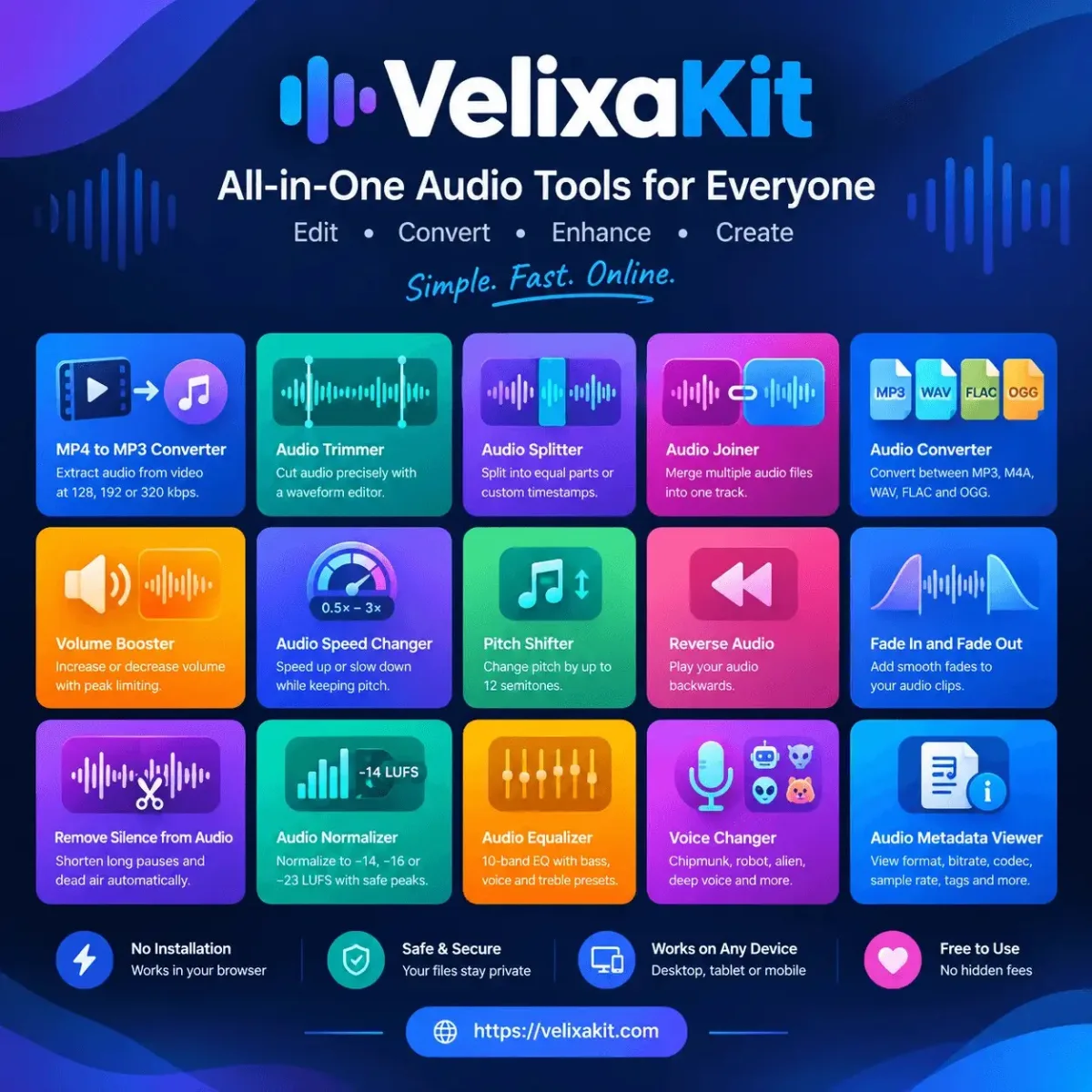
VelixaKit brings together a collection of browser-based audio utilities designed to help users complete common audio editing and conversion tasks. Instead of searching for a separate application for every small adjustment, you can choose a tool that matches your needs and get started with the relevant audio operation.
From converting video files to MP3 and trimming songs to changing playback speed and inspecting audio metadata, VelixaKit offers practical tools for musicians, students, content creators, podcasters, and everyday users. In this guide, we will explore the available VelixaKit audio tools, explain what each one does, and help you choose the right option for your next project.
What Are VelixaKit Audio Tools?
VelixaKit audio tools are online utilities for performing everyday audio tasks, including file conversion, editing, sound adjustments, audio effects, and technical file inspection.
Depending on the tool, you can work with formats such as MP3, WAV, M4A, FLAC, OGG, and supported video formats. Every tool accepts files up to 100 MB, and each has its own supported formats and processing options.
These tools can be useful when you need to:
- Extract audio from a video file.
- Cut unwanted sections from a song or recording.
- Split a long recording into smaller files.
- Combine multiple audio clips into one track.
- Convert audio between different file formats.
- Adjust volume, speed, or pitch.
- Add fade effects or reverse a recording.
- Remove unnecessary silence.
- Normalize audio loudness.
- Inspect file properties and metadata.
The goal is straightforward: help users perform specific audio tasks without navigating a complicated professional editing workflow.
Explore the tools: VelixaKit Audio & Video Tools
Explore the AI Audio Editor: Stemsly AI Audio Editor
15 VelixaKit Audio Tools and How to Use Them
1. MP4 to MP3 Converter
Sometimes you need the sound from a video without keeping the video itself. For example, you might want to extract dialogue from a recording, save a lecture's audio for listening, or obtain an audio track from a supported video file.
The VelixaKit MP4 to MP3 Converter extracts audio from MP4, MOV, MKV, WebM and AVI files of up to 100 MB. Available MP3 bitrate options include:
- 128 kbps: A practical option for smaller files and everyday listening.
- 192 kbps: A middle ground between file size and audio quality.
- 320 kbps: A higher-bitrate option for users who prefer less additional compression.
The best setting depends on your source recording, listening needs, and available storage. Converting an already compressed source to a higher bitrate does not restore audio information that has been lost.
Best for: Extracting audio from video clips, lectures, recordings, and other supported media.
2. Audio Trimmer
An audio trimmer helps you remove unwanted sections from an existing recording. You might use it to shorten a song, cut the beginning of a voice note, or isolate a specific passage from a longer recording.
VelixaKit's Audio Trimmer provides a waveform-based editing experience with precise selection controls, allowing you to choose the section you want to keep. Common uses include:
- Creating short music clips.
- Removing unwanted introductions or endings.
- Preparing audio snippets for videos.
- Shortening voice recordings.
- Extracting a specific section of a lecture or interview.
The tool supports files up to 100 MB. For the cleanest result, preview the selected section before exporting. If a cut sounds abrupt, choosing a suitable edit point or adding a fade can help.
3. Audio Splitter
Long recordings can be difficult to organize, share, or review as a single file. An audio splitter divides one recording into smaller sections. VelixaKit supports three splitting approaches:
- Equal parts: Divide a recording into sections of approximately equal duration.
- Fixed-length parts: Split audio into intervals of a specified length.
- Exact timestamps: Choose specific points at which the recording should be divided.
For example, a two-hour lecture could be divided into shorter study sessions, while a long interview could be separated into sections for review.
The tool supports files up to 100 MB, and the resulting parts download together as a ZIP archive.
Best for: Lectures, interviews, meetings, long voice recordings, and audio archives.
4. Audio Joiner
An audio joiner combines multiple audio files into a single track. This is useful when recordings were saved separately or when you want to arrange several clips into one continuous sequence.
With VelixaKit's Audio Joiner, you can select up to 20 files, arrange their order, and combine supported formats, including MP3, WAV, and M4A. Possible uses include:
- Combining interview segments.
- Joining voice recordings.
- Creating a continuous playlist or audio sequence.
- Merging narration recorded in separate sessions.
- Assembling audio clips for a video project.
Before joining files, consider their volume levels, sample rates, and channel configurations. Differences between recordings can affect the final listening experience.
Joining files also does not automatically make their sound levels consistent. If the resulting track sounds uneven, consider using a volume adjustment or normalization tool.
5. Audio Converter
Different devices, applications, and publishing platforms may support different audio formats. An audio converter helps you change a file from one format to another. VelixaKit's Audio Converter supports conversions among formats such as:
- MP3: Widely supported and useful for general listening.
- WAV: Commonly used for uncompressed audio and production workflows.
- M4A: Frequently associated with AAC audio.
- FLAC: A lossless format that preserves the encoded audio without lossy compression.
- OGG: A container format commonly used with Vorbis or Opus audio.
The appropriate format depends on how you plan to use the file. MP3 can be suitable for sharing, WAV can be useful in editing workflows, and FLAC is worth considering when preserving lossless audio matters.
Remember that changing a file extension is not the same as converting its contents. Use a proper conversion process to create a file in the desired format.
6. Volume Booster
A recording can sound too quiet even when the content itself is clear. This can happen with voice notes, older recordings, interviews, or audio captured at a low input level.
VelixaKit's Volume Booster lets you increase or decrease audio volume by a selected number of decibels, with a limiter that helps control peaks and reduce distortion. You might use it to:
- Make a quiet recording easier to hear.
- Reduce the level of an overly loud clip.
- Prepare voice recordings for editing.
- Adjust audio before combining several clips.
Increasing volume does not necessarily improve sound quality. If the original recording contains background noise, that noise may become more noticeable when the volume is raised.
A limiter can help control peaks, but excessive gain or limiting can still affect the sound. Listen to the exported file before using it in a larger project.
7. Audio Speed Changer
Changing playback speed can help you learn, review, or create audio more efficiently. VelixaKit's Audio Speed Changer supports speed adjustments from 0.5× to 3× while preserving the original pitch. Examples include:
- Listening to lectures at a faster pace.
- Slowing down spoken explanations.
- Practising musical passages.
- Reviewing interviews more quickly.
- Adjusting audio timing for a creative project.
At 0.5× speed, playback is half as fast as the original. At 2× speed, playback is twice as fast.
Pitch-preserving time stretching is useful when you want to change duration without making a voice sound unnaturally high or low. However, extreme adjustments may introduce audible artifacts, depending on the source.
8. Pitch Shifter
Pitch and speed are related in traditional playback, but they do not have to change together when using appropriate audio processing. A pitch shifter raises or lowers the musical pitch of a recording while keeping its duration unchanged.
VelixaKit's Pitch Shifter supports adjustments of up to 12 semitones in either direction. This can be useful for:
- Adjusting a song to better suit a singer's vocal range.
- Practising music in a different key.
- Experimenting with musical arrangements.
- Creating altered voice effects.
- Testing different pitch variations during production.
One semitone represents one step in the standard 12-tone equal-tempered musical scale. A shift of 12 semitones corresponds to an octave.
For musical practice, start with a small adjustment and listen carefully. Larger shifts can change the character of vocals and instruments even when the duration stays the same.
9. Reverse Audio
Reverse audio processing plays a recording backward, from its end toward its beginning. This simple effect can create unusual sounds and is often used in music production, sound design, experimental audio, and creative video projects. Possible applications include:
- Creating reversed musical effects.
- Experimenting with sound design.
- Producing unusual transitions.
- Reversing short voice recordings.
- Exploring creative effects for videos and social content.
VelixaKit's Reverse Audio tool supports recordings up to 60 minutes long.
Reversing a recording changes the order of its audio samples. It does not translate speech, remove background noise, or make the original sound clearer.
10. Fade In and Fade Out
A sudden start or stop can make audio sound unfinished. Fade effects gradually change the volume to create a smoother transition. A fade-in starts quietly and increases the sound level. A fade-out gradually reduces the level toward the end of a clip.
These effects are useful for:
- Music introductions and endings.
- Podcast transitions.
- Background music for videos.
- Short promotional clips.
- Narration and audio storytelling.
VelixaKit's fade tool lets you set the length of each fade and choose an even or a smooth curve.
For music, the fade duration depends on the style and purpose of the recording. A short fade may work for a brief clip, while a longer fade may suit ambient music or a closing sequence. Always preview the result to ensure the fade does not remove an important word, musical note, or sound effect.
11. Remove Silence from Audio
Open Remove Silence from Audio
Long pauses and unnecessary dead air can make recordings feel slow, especially in podcasts, lectures, interviews, and voice notes. A silence-removal tool identifies quiet sections and shortens or removes them according to its settings.
VelixaKit's tool reduces long pauses while keeping natural breaks, and shows how much audio has been removed. It can help with:
- Editing spoken-word recordings.
- Shortening lectures and presentations.
- Cleaning up pauses in voice notes.
- Improving the pacing of interviews.
- Preparing narration for further editing.
However, silence is not always unwanted. A pause can communicate emphasis, allow listeners to process information, or preserve the natural flow of a conversation.
Review the edited recording before publishing it. If the tool removes breaths, quiet speech, or intentional pauses, adjust the settings or use a different editing approach.
12. Audio Normalizer
Audio normalization helps bring a recording closer to a chosen loudness target. It is particularly useful when preparing podcasts, spoken-word content, and other material that should have a consistent listening level.
VelixaKit's Audio Normalizer offers targets of −14, −16, and −23 LUFS, and keeps peaks below −1 dB. LUFS stands for Loudness Units relative to Full Scale. Unlike a simple peak measurement, loudness measurements help describe how loud audio is perceived over time. The targets can serve different workflows:
- −14 LUFS: A commonly encountered target in digital media workflows, though requirements vary by platform.
- −16 LUFS: A possible target for certain spoken-word and podcast workflows.
- −23 LUFS: A target associated with some broadcast loudness practices.
These are reference points, not universal rules. Always check the delivery specifications of the platform or broadcaster where you intend to publish.
Normalization can adjust the overall level, but it does not automatically fix poor recording quality, excessive background noise, or inconsistent dynamics within a recording.
For more technical background, consult the EBU's official loudness resources.
13. Audio Equalizer
An equalizer changes the relative level of different frequency ranges in an audio recording. For example, lower frequencies contribute to bass, while higher frequencies influence treble and certain details in voices and instruments.
VelixaKit's Audio Equalizer provides 10 frequency bands spanning 31 Hz to 16 kHz, with presets for bass boost, clearer voice, and treble. You can use an equalizer to:
- Add or reduce bass.
- Adjust the brightness of a recording.
- Make dialogue sound more prominent.
- Experiment with music tone.
- Reduce some frequency-related listening problems.
There is no single equalizer setting that works best for every recording. The result depends on the source material, playback equipment, room acoustics, and personal preference.
Start with modest adjustments. Excessive boosting can make a recording sound harsh, muddy, or unnatural.
14. Voice Changer
A voice changer applies effects to an existing voice recording to create a different sound or character. VelixaKit's Voice Changer includes chipmunk, deep voice, robot, alien, telephone, megaphone, echo, and cave voice effects. These effects can be useful for:
- Short comedy clips.
- Creative social media content.
- Character voices for videos.
- Experimental audio projects.
- Sound effects for games or storytelling.
Different effects produce different results. A deep-voice effect alters the perceived character of a voice, while echo and cave effects add reflections or repeated sound.
Voice effects are primarily creative tools. They should not be treated as reliable identity verification or as a way to establish that a recording genuinely belongs to a particular person. When creating or sharing altered voices, respect other people's privacy and avoid using effects to mislead audiences about a person's identity or statements.
15. Audio Metadata Viewer
Open the Audio Metadata Viewer
Audio metadata provides information about a file beyond what you can hear when playing it. VelixaKit's Audio Metadata Viewer displays technical properties such as:
- Audio format and codec.
- Recording duration.
- Bitrate.
- Sample rate.
- Number of audio channels.
- Bit depth, when available.
- Embedded cover artwork.
- Available tags and metadata.
This information is helpful when organizing music collections, checking exported files, preparing audio for editing, or troubleshooting compatibility issues.
For example, a sample rate of 44.1 kHz indicates 44,100 audio samples per second for each channel. Bit depth relates to the precision of digital audio sample representation in applicable formats.
Not every file contains all these properties. Some formats do not expose every field in the same way. The metadata viewer helps you understand what is present in a file, but it does not determine whether the recording sounds good or whether its metadata is accurate.
How to Choose the Right VelixaKit Audio Tool
The easiest way to select an audio utility is to start with the outcome you want rather than the technical name of the tool.
| Your goal | Recommended tool |
|---|---|
| Extract sound from a video | MP4 to MP3 Converter |
| Cut a specific section of audio | Audio Trimmer |
| Divide a long recording into parts | Audio Splitter |
| Combine several audio files | Audio Joiner |
| Change the file format | Audio Converter |
| Make a quiet recording louder | Volume Booster |
| Speed up or slow down playback | Audio Speed Changer |
| Change a song's key | Pitch Shifter |
| Play audio backward | Reverse Audio |
| Create smoother audio endings | Fade In and Fade Out |
| Shorten unnecessary pauses | Remove Silence from Audio |
| Adjust overall loudness | Audio Normalizer |
| Adjust bass, voice, or treble | Audio Equalizer |
| Create unusual voice effects | Voice Changer |
| Check audio technical details | Audio Metadata Viewer |
How to Edit Audio Online: A Simple Workflow
Although each tool has a different purpose, a few general steps can help you get better results.
Step 1: Identify the original file
Check the file format, duration, and size before beginning. If you are unsure about its properties, start with the Audio Metadata Viewer. Make sure the file is supported by your chosen tool and stays within its size limit.
Step 2: Choose the appropriate operation
Select the tool that directly addresses your goal. For example, use the Audio Trimmer to remove unwanted sections, the Audio Converter to change formats, or the Audio Normalizer to adjust overall loudness. A purpose-built utility can make a simple task easier than opening a full digital audio workstation.
Step 3: Apply the adjustments
Choose the available settings carefully. These might include bitrate, trim points, splitting intervals, gain, speed, pitch, or fade duration. Avoid assuming that the strongest setting will produce the best result. Smaller adjustments are often easier to evaluate and refine.
Step 4: Preview and check the result
Listen to the processed audio before using it elsewhere. Check for abrupt cuts, distortion, unexpected changes in pitch, missing words, and unwanted background sounds. For conversion tasks, confirm that the exported file opens correctly and uses the intended format.
Step 5: Export and organize the file
Save the output with a clear filename. If you are creating several versions, consider including the format or purpose in each filename. For example, interview-trimmed.mp3 is easier to identify than audio-final-final-2.mp3. Keep a copy of the original recording if you may need to make further changes.
Ready to start? Open the VelixaKit Audio & Video Tools collection and pick the tool for your file.
Who Can Benefit from VelixaKit Audio Tools?
Students and teachers
Students can shorten recordings, divide lectures into smaller sections, or adjust playback speed to support revision. Teachers may use trimming and joining tools to prepare audio resources.
Podcasters and interviewers
Podcasters can trim recordings, shorten long pauses, adjust loudness, and combine separately recorded segments. These tools can help with basic preparation before a final editing and quality-control process.
Musicians and music learners
Musicians can experiment with pitch shifting, speed adjustments, fades, and equalization. These features can support practice and creative exploration, although they do not replace a full music-production workflow.
Video creators and social media publishers
Creators can extract audio from supported videos, prepare short clips, change volume, and apply voice effects. These tasks can be useful when assembling content for different formats.
Everyday users
Anyone who needs to convert an audio file, shorten a voice note, reverse a sound, or inspect a file's properties may benefit from having dedicated audio utilities available online.
Online Audio Tools vs. Desktop Audio Software
Online audio utilities and professional desktop applications serve different needs.
| Feature | Online audio tools | Desktop audio software |
|---|---|---|
| Common editing tasks | Often convenient for individual operations | Supported, often with more advanced options |
| Installation | Usually accessed through a browser | Typically requires installation |
| Learning curve | Can be simpler for specific tasks | Varies from beginner-friendly to advanced |
| Complex multitrack production | Depends on the specific tool | Often better suited to advanced workflows |
| Advanced mixing and mastering | Depends on available functionality | Commonly offers more detailed control |
| Processing limits | May include file-size or browser constraints | Depends on hardware and software |
| Offline availability | Depends on implementation | Often available when installed, subject to licensing and resources |
VelixaKit is worth exploring when you want to complete a specific audio task without learning a large software package.
However, users working on complex multitrack sessions, detailed mixing, extensive restoration, or professional mastering may need dedicated audio software. The best option depends on the complexity of your project, the level of control you need, and the capabilities of the tool.
Audio Quality: Important Things to Know
A useful audio workflow involves more than selecting a file format or turning up the volume. Understanding a few technical concepts can help you avoid common mistakes.
Bitrate and file size
For compressed audio formats such as MP3, bitrate influences file size and can affect perceived audio quality. Higher bitrates generally produce larger files at the same duration, but the audible difference depends on the source and encoding settings. Converting a low-bitrate MP3 into a higher-bitrate MP3 will not restore information lost during the original encoding.
Lossy and lossless formats
Lossy formats discard some audio information to reduce file size. Lossless formats preserve the encoded audio information without lossy compression. Choose a format based on the intended use, compatibility, and quality requirements.
Loudness and peak levels
Peak level describes the highest signal level, while loudness measurements help estimate perceived audio level over time. A recording with high peaks is not necessarily perceived as consistently loud. Normalization can help adjust overall loudness, but it cannot automatically correct every problem with the recording.
Pitch and speed
Changing playback speed traditionally changes pitch as well. Time-stretching and pitch-shifting techniques can adjust these characteristics more independently, although processing artifacts may occur.
Background noise and distortion
Increasing volume does not remove background noise. Similarly, converting formats does not repair clipping or reconstruct missing audio detail. For a poor-quality source recording, the most effective solution may involve re-recording, noise reduction, or specialized restoration software.
For technical background on browser-based audio processing, see the MDN Web Audio API documentation.
Privacy and Security When Using Online Audio Tools
Audio recordings can contain private conversations, personal information, business discussions, or copyrighted material. Before uploading a recording to any online service, consider the sensitivity of its contents. Here are a few sensible precautions:
- Read the website's privacy policy and understand how uploaded files are processed.
- Check whether files are processed locally in your browser or uploaded to a server.
- Avoid uploading confidential recordings unless the service's data-handling practices meet your requirements.
- Use a secure connection and keep your browser updated.
- Only process recordings that you have the right or permission to use.
- Delete downloaded copies you no longer need, particularly on shared devices.
Browser-based processing does not automatically guarantee privacy, and a website's use of HTTPS alone does not establish how it stores or handles files.
Every VelixaKit audio tool processes the file inside your web browser, on your own device. The recording is not uploaded to our server, and the result is saved straight to your device when you download it.
Frequently Asked Questions
What are VelixaKit audio tools?
VelixaKit audio tools are online utilities for tasks such as audio conversion, trimming, splitting, joining, volume adjustment, speed changes, pitch shifting, sound effects, and metadata inspection.
Can I convert MP4 to MP3 online with VelixaKit?
Yes. The MP4 to MP3 Converter extracts audio from MP4, MOV, MKV, WebM and AVI videos and saves it as MP3 at 128, 192, or 320 kbps. It accepts files up to 100 MB.
Can I trim an MP3 without installing software?
Yes. The VelixaKit Audio Trimmer cuts a selected section from a supported audio file through its browser-based waveform editor, so there is nothing to install.
How can I merge multiple audio files?
Open the Audio Joiner, select your files, arrange them in the order you want, and create the combined track. You can join up to 20 files in one go.
How do I make an audio recording louder?
Use the Volume Booster to increase the recording's level. Listen for distortion after processing, because increasing volume cannot recover details missing from the original recording.
What is the difference between an audio normalizer and a volume booster?
A volume booster lets you increase or decrease the level by a selected gain amount. An audio normalizer measures the recording and adjusts it toward a target loudness such as −14, −16, or −23 LUFS. Neither operation automatically repairs poor recording quality.
Can I change a song's key without changing its speed?
Yes. The Pitch Shifter changes pitch by up to 12 semitones up or down without changing the recording's duration. The result depends on the source audio.
Is VelixaKit suitable for professional audio production?
VelixaKit's tools can assist with common editing and preparation tasks. Whether they meet professional requirements depends on the specific operation, output quality, and project complexity. Advanced mixing, multitrack production, and detailed mastering may require dedicated software.
Are my audio files processed privately?
Yes. Every VelixaKit audio tool processes the file inside your web browser, on your own device, so the recording is not uploaded to our server. For any other online service, check its privacy policy before processing sensitive recordings.
What audio formats can I use?
Supported formats vary by tool. The Audio Converter works with MP3, WAV, M4A, FLAC, and OGG, while the MP4 to MP3 Converter accepts MP4, MOV, MKV, WebM, and AVI videos. Check the individual tool page for its current formats; every audio tool accepts files up to 100 MB.
Final Thoughts: Simplify Everyday Audio Editing with VelixaKit
Audio editing does not always require complicated software or a lengthy production workflow. For many everyday tasks, a dedicated online utility can provide a straightforward starting point.
VelixaKit brings together tools for converting video to audio, trimming recordings, splitting long files, joining clips, adjusting volume, changing speed and pitch, adding effects, normalizing loudness, and inspecting audio metadata.
The most effective approach is to choose the tool that matches your specific goal, use settings appropriate for your source recording, and review the exported result before sharing or publishing it. Whether you are preparing a podcast, studying with lecture recordings, experimenting with music, or simply converting a file, start with the utility designed for the job.
Ready to work with your audio files? Explore the complete collection at VelixaKit Audio & Video Tools, try the Stemsly AI Audio Editor, and choose the audio utility that fits your next project.