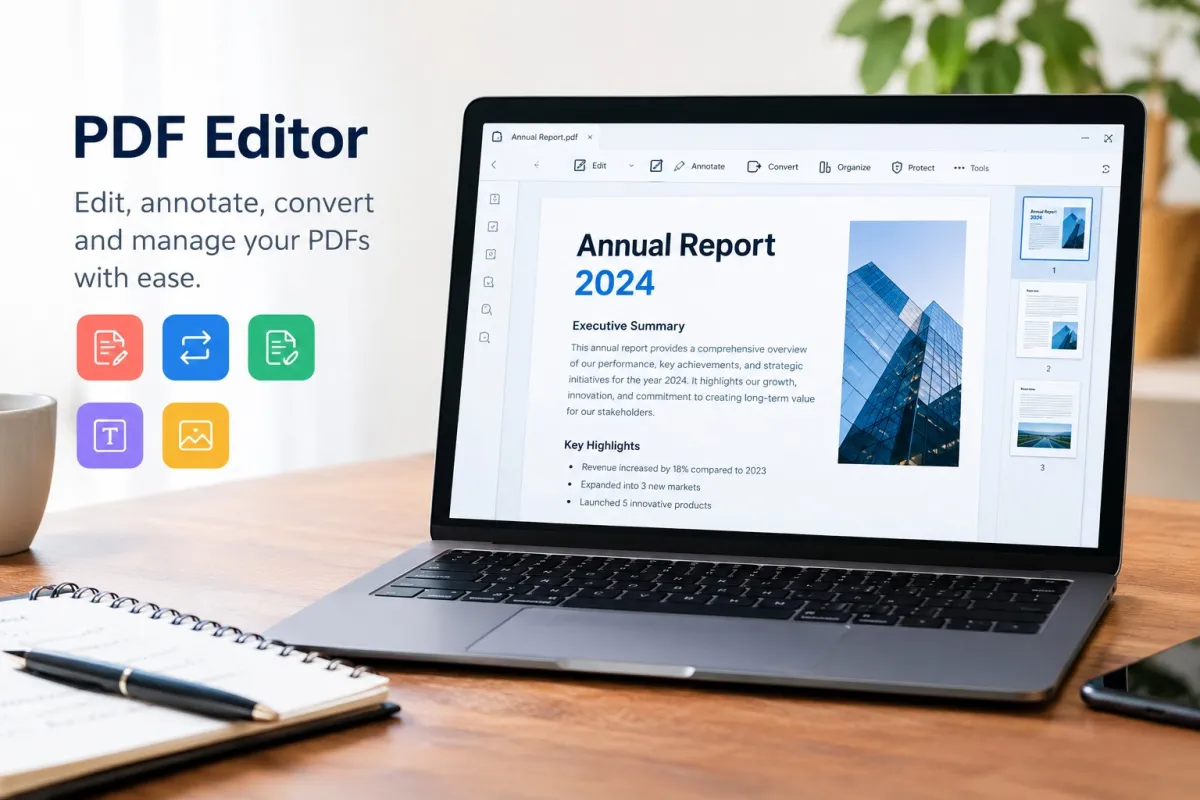
Introduction: What Is a PDF Editor?
PDF files are widely used for business documents, invoices, contracts, application forms, academic assignments, reports, and digital records. Their consistent formatting makes them convenient to share, but editing a PDF can be difficult when you need to correct a sentence, rearrange pages, sign a contract, or convert its contents into another file format.
A PDF editor is a tool that allows you to modify, organize, annotate, sign, or otherwise manage PDF documents. Depending on its capabilities, it may let you add text, highlight important information, remove pages, protect a file with a password, or convert a PDF into an editable Word document.
If you need to make a quick correction or prepare a document for sharing, an online PDF editor can be a practical alternative to installing desktop software. VelixaKit provides a collection of PDF tools designed for common document tasks, including editing, converting, compressing, signing, and organizing files.
Start with the VelixaKit PDF editing tool to explore available editing options.
What Can You Do With a PDF Editor?
The right PDF editor depends on the task you want to complete. Some tools focus on changing visible content, while others specialize in file conversion, page management, or document security.
1. Edit PDF Text and Content
PDF editing can involve adding text, placing annotations, highlighting important passages, or covering unwanted content.
For example, you might need to add a reference number to an invoice, insert a short note into a report, or highlight a clause in a contract.
With Edit PDF, you can explore options for adding text, white-out areas, and highlights.
It is important to distinguish between adding text on top of a page and modifying the original text structure. Some PDFs contain editable text, while others consist of scanned images. The editing method and available features determine what can be changed.
2. Convert PDF Files Into Editable Documents
PDF files are convenient for distribution, but Word documents and spreadsheets can be easier to revise.
A PDF converter changes a document into another format, such as DOCX, JPG, XLSX, or PPTX. The accuracy of the conversion depends on the original file, its layout, the quality of scanned pages, and the conversion technology.
Useful conversion tools include:
- PDF to Word: Convert PDF documents into editable Word files.
- PDF to Excel: Extract tables and numerical information into an Excel workbook.
- PDF to PowerPoint: Turn PDF pages into PowerPoint slides.
- PDF to JPG: Export PDF pages as image files.
- PDF to Text: Extract text into a plain-text document.
- PDF to Markdown: Convert PDF text and layouts into structured Markdown.
If you want to edit a document's paragraphs, headings, or tables, a PDF-to-Word converter is often the most useful starting point. Review the resulting file before using it, particularly when the original contains multiple columns, complex tables, or unusual fonts.
3. Merge Multiple PDF Files
Combining several documents into one file makes reports easier to distribute and archive.
Imagine that you have a business proposal, supporting documents, and a signed agreement saved as separate PDFs. A merge tool can combine these files into one document, provided the files are compatible with the tool.
Use Merge PDF to combine multiple PDFs in your preferred order.
Before merging, check the page sequence and confirm that the final document includes all the pages you need.
4. Compress PDF Files
Large PDFs can be difficult to upload to application portals, attach to emails, or share through messaging platforms.
A PDF compression tool reduces file size by optimizing images, embedded resources, or other document elements. The amount of compression depends on the document's contents and the optimization settings.
Try Compress PDF when you need a smaller document for sharing or uploading.
For scanned documents, compare the compressed version with the original. Excessive image compression can make small text, signatures, charts, and fine details harder to read.
5. Sign PDF Documents Online
Digital documents often require signatures for approvals, contracts, applications, and business correspondence.
A PDF signing tool may allow you to draw a signature, type a name in a signature style, or upload an image of a signature.
Use Sign PDF to explore the available signing options.
A visual signature is not necessarily the same as a cryptographic digital signature. If a document requires identity verification, a certificate-based signature, or compliance with a particular jurisdiction's electronic-signature rules, check those requirements before signing.
6. Organize and Rearrange PDF Pages
Sometimes the content is correct, but the pages are in the wrong order. You may need to remove unnecessary pages, duplicate a page, insert additional material, or extract a particular section.
VelixaKit provides several tools for these tasks:
- Organize PDF: Rearrange, duplicate, delete, or insert pages.
- Split PDF: Separate a document into smaller PDFs.
- Extract PDF Pages: Save selected pages as a new PDF or individual files.
- Delete PDF Pages: Remove unwanted pages.
- Rotate PDF: Correct page orientation.
- Crop PDF: Trim margins or selected page regions.
These tools can be especially useful when preparing application documents, combining business records, or removing irrelevant sections from a report.
7. Protect Sensitive PDF Documents
PDFs sometimes contain personal information, financial records, business data, or confidential correspondence.
Depending on your needs, you may want to add password protection, remove sensitive information, or restrict access to document content.
Consider these tools:
- Protect PDF: Add password protection using the tool's available encryption options.
- Redact PDF: Permanently remove selected sensitive content.
- PDF Metadata Editor: Review or change document metadata.
- Watermark PDF: Add text or image watermarks to pages.
- Unlock PDF: Remove supported restrictions when authorized and when the required credentials are available.
Password protection and redaction serve different purposes. A password can limit access to a file, whereas proper redaction removes underlying sensitive content. Simply drawing a black rectangle over text may leave the original information recoverable.
For confidential documents, verify the redaction by searching, copying, and inspecting the resulting PDF before sharing it.
How to Edit a PDF Online: A Step-by-Step Guide
Using an online PDF editor can simplify routine document changes. The exact steps depend on the tool and the file's structure.
Step 1: Choose the Right PDF Tool
Identify the change you need to make. For example:
- To add text or highlights, use Edit PDF.
- To convert a document into an editable Word file, use PDF to Word.
- To combine multiple files, use Merge PDF.
- To reduce file size, use Compress PDF.
- To add a signature, use Sign PDF.
Choosing a specialized tool can be more efficient than trying to perform every task in a single application.
Step 2: Select Your PDF File
Open the relevant tool and select the document you want to process.
Before uploading, check the file size, confirm that the document is the correct version, and make a backup if the original is important.
If the document contains confidential information, review the service's privacy policy and file-handling practices before uploading it.
Step 3: Make the Required Changes
Follow the controls provided by the editor.
Depending on the tool, you may be able to add text, highlight sections, rearrange pages, select conversion options, or configure compression settings.
Work carefully around tables, page numbers, footnotes, and signatures. Small changes can sometimes affect alignment or pagination.
Step 4: Preview the Result
Always review the processed document before downloading or sharing it. Check:
- Text spelling and readability.
- Page order and orientation.
- Table alignment and column spacing.
- Images, charts, and embedded fonts.
- Signature placement.
- File size and page count.
- Whether sensitive information has actually been removed.
If you converted a scanned document, check the extracted text against the original page images.
Step 5: Download and Store the File Securely
Save the completed document to an appropriate folder and use a descriptive filename.
For important documents, keep the original and the edited version until you have confirmed that the final file is correct. Avoid sharing sensitive PDFs through public links or unsecured channels.
What Is the Difference Between a PDF Editor and a PDF Converter?
Although these tools are related, they solve different problems.
| Feature | PDF Editor | PDF Converter |
|---|---|---|
| Main purpose | Modify or annotate document content | Change a file into another format |
| Typical tasks | Add text, highlight, sign, redact | PDF to Word, JPG, Excel, or PowerPoint |
| Page management | May be included | Depends on the tool |
| Formatting changes | Usually within the PDF | May change during conversion |
| Best for | Making changes to a document | Reusing content in another application |
A PDF editor is the better choice when you need to make a correction directly to a PDF. A PDF converter is more suitable when you want to continue editing the content in Word or analyze tables in Excel.
Some platforms offer both types of functionality, allowing users to choose the workflow that fits their needs.
How to Choose the Best Free PDF Editor
Not every free PDF editor offers the same features. Before choosing one, evaluate the following factors.
Essential Editing Features
Check whether the editor supports the changes you actually need, such as adding text, highlighting content, rearranging pages, signing documents, or removing unwanted information.
Do not assume that every tool can edit existing paragraphs in exactly the same way as a word processor.
Conversion Quality
If you frequently convert PDFs into Word or Excel, look for tools that handle headings, lists, tables, images, and numerical values accurately.
Always inspect converted files before relying on them for business, academic, or financial work.
File Size and Processing Limits
Free PDF tools may have limits on file size, page count, usage frequency, or available features. Review these limits before starting a large conversion or processing a lengthy report.
Privacy and Security
Check whether files are processed in your browser or uploaded to a server. Review the service's privacy policy, retention practices, encryption claims, and deletion options.
Browser-based processing can reduce the need to upload files, but it does not automatically guarantee complete security.
Ease of Use
An effective editor should have clear controls, readable instructions, and a straightforward way to download the finished file. A mobile-friendly interface is also useful when editing documents on a phone or tablet.
Cost and Usage Restrictions
A free PDF editor may be sufficient for occasional tasks. If you regularly process large files or need advanced editing, OCR, batch processing, or professional document-signing workflows, compare the available features and any paid-plan requirements.
For common document tasks, you can start by exploring the VelixaKit PDF tools collection.
Can You Edit a Scanned PDF?
Yes, but the method depends on what you want to change.
A scanned PDF often contains page images instead of selectable text. An ordinary text editor may not recognize the words because they are part of an image.
Optical character recognition (OCR) analyzes the image and identifies text that can be searched, selected, or converted into an editable document.
Different tools support different workflows:
- Make a scanned PDF searchable: Use OCR PDF to add a searchable text layer while retaining the page images.
- Convert a scanned PDF to Word: Try PDF to Word, which describes OCR support for scanned pages.
- Turn an image into editable text in a PDF: Explore Image to Editable PDF.
- Convert an image into a Word document: Use Image to Word.
OCR results can contain errors, particularly when pages are blurry, handwritten, skewed, or printed in unusual fonts. Always proofread recognized text, especially names, dates, amounts, identification numbers, and legal language.
Best PDF Tools for Common Everyday Tasks
The following table matches common problems with relevant VelixaKit tools.
| Your Goal | Recommended Tool |
|---|---|
| Edit text or add annotations | Edit PDF |
| Convert PDF into Word | PDF to Word |
| Combine multiple PDFs | Merge PDF |
| Reduce a large file | Compress PDF |
| Sign a document | Sign PDF |
| Add password protection | Protect PDF |
| Remove sensitive information | Redact PDF |
| Extract selected pages | Extract PDF Pages |
| Convert PDF tables into Excel | PDF to Excel |
| Translate document text | Translate PDF |
| Add page numbers | Page Numbers |
| Repair a damaged document | Repair PDF |
Choose the tool that matches your immediate goal rather than processing the same file through unnecessary steps.
Why PDF Editing Matters for Students, Professionals, and Businesses
PDF editing is useful across a wide range of everyday workflows.
For Students and Researchers
Students can organize assignments, annotate research papers, extract selected pages, and convert reading materials into formats that are easier to review.
Researchers working with scanned articles may also benefit from OCR and PDF-to-text conversion when preparing searchable research archives.
For Business Professionals
Employees and business owners frequently exchange proposals, invoices, contracts, reports, and presentations. PDF tools can help them standardize documents, add signatures, combine attachments, and prepare files for distribution.
For sensitive business documents, security requirements should take priority over convenience.
For Freelancers and Remote Workers
Freelancers may need to sign agreements, submit application forms, compress portfolios, or convert client documents into editable formats.
A web-based workflow can be convenient when switching between devices or working without access to a dedicated desktop application.
For Administrative and Financial Tasks
PDF tools can assist with organizing statements, extracting invoice tables, and preparing records for accounting software.
However, always verify converted numerical data. Incorrect decimal points, currency symbols, dates, or column alignment can cause serious errors when working with financial records.
Common PDF Editing Problems and How to Solve Them
The PDF Text Cannot Be Edited
The file may contain scanned page images, outlined text, or restrictions on editing.
Try OCR for scanned documents or use an appropriate editing method for the PDF's structure. If permissions are restricted, confirm that you have authorization to modify the file.
Formatting Changes After PDF-to-Word Conversion
PDFs preserve page layout, whereas Word documents use editable text flow. As a result, conversion can alter spacing, columns, line breaks, and tables.
Try converting a representative page first and compare the result with the original. For complicated layouts, some manual correction may be unavoidable.
The PDF Is Too Large to Upload
Use a compression tool and select a suitable optimization level. If the file contains high-resolution scans, reducing image resolution may help, but check that the text remains legible.
A Scanned PDF Has No Searchable Text
Run OCR to recognize the words on the page. If the result is inaccurate, improve the scan quality or use a clearer source document before repeating the process.
Sensitive Text Remains Visible After Editing
If you need to remove confidential content permanently, use a proper redaction workflow instead of placing a shape over the text. Inspect the output to confirm that the underlying content cannot be selected, copied, or recovered through ordinary PDF operations.
A PDF Will Not Open
The file may be incomplete, corrupted, or incompatible with the application. Confirm that the download finished successfully and try opening a backup. If necessary, explore Repair PDF, then inspect the recovered pages for missing content.
Is It Safe to Use a Free Online PDF Editor?
Online PDF editing can be convenient, but the appropriate level of caution depends on the document and the service.
Before using any free online PDF editor:
- Read its privacy policy and understand how uploaded files are handled.
- Avoid uploading confidential documents to services whose security practices you cannot verify.
- Use password protection where appropriate, but do not treat a password alone as a complete security strategy.
- Apply true redaction when removing confidential information.
- Keep backups of important original documents.
- Verify that the downloaded file is complete and correct.
- Follow your employer's, institution's, or client's document-handling requirements.
For highly sensitive legal, medical, financial, or government records, an approved local application or organization-authorized service may be more appropriate.
Frequently Asked Questions About PDF Editors
What is the best free PDF editor?
The best free PDF editor depends on your needs. Some users need basic annotations, while others require page organization, document signing, OCR, or conversion. Compare supported features, file limits, privacy practices, and download options before choosing a tool. You can begin with VelixaKit's PDF editing tool.
Can I edit a PDF online without installing software?
Yes. Web-based PDF tools can support editing, page organization, compression, signing, and file conversion without requiring a traditional desktop installation. Available functionality and browser requirements vary by tool.
How can I edit a PDF for free?
Choose a suitable free PDF tool, select your document, make the required changes, preview the result, and download the edited file. Check for usage limits or features that require payment before processing your document.
How do I convert a PDF to Word without losing formatting?
Use a PDF-to-Word converter designed to preserve layout elements. Review the converted document for changes to fonts, headings, lists, columns, tables, and images. Complex or scanned PDFs may require additional corrections. Try PDF to Word.
Can I edit text in a scanned PDF?
Yes, if the workflow supports OCR or another suitable text-recognition method. OCR converts text within a page image into machine-readable text, but the output should be checked for recognition errors.
How can I reduce the size of a PDF?
Use a PDF compression tool that optimizes images and other document resources. Choose an appropriate compression level and check the final file's readability.
Can I sign a PDF without printing it?
Yes. Some PDF tools allow you to draw, type, or upload a visual signature. Documents requiring a verified digital signature may need a certificate-based signing service or a legally compliant electronic-signature workflow.
What is the difference between a PDF editor and a PDF converter?
A PDF editor changes or annotates the document, while a PDF converter changes the file into another format. Some platforms provide both types of functionality.
Can I remove confidential information from a PDF permanently?
Yes, provided you use a proper redaction tool that removes the underlying content. Verify the result before sharing it. Covering text with a colored shape is not reliable redaction.
Can I use a PDF editor on my phone?
Many online PDF tools can be accessed through mobile browsers. The experience depends on screen size, browser compatibility, file size, and the specific features offered by the tool.
Can a PDF editor convert invoices into Excel?
A PDF-to-Excel tool can extract tables from supported documents. Accuracy depends on the invoice layout, scan quality, and extraction method. Check totals, dates, tax amounts, and other numerical values before using the spreadsheet.
Are online PDF editors suitable for confidential documents?
They may be suitable when their security controls and data-handling practices meet your requirements. For highly sensitive documents, use an approved service and follow the applicable organizational policies.
Final Thoughts: Choose the Right PDF Editor for Your Workflow
A PDF editor can simplify document management by helping you add text, annotate pages, sign files, organize documents, and prepare PDFs for sharing. A PDF converter complements these features by allowing you to reuse document content in Word, Excel, PowerPoint, image, and text formats.
The most effective workflow starts with a clear goal: edit the content, convert the format, compress the file, organize the pages, or protect sensitive information. After completing the task, review the final document to make sure that the formatting, content, and security meet your needs.
Ready to manage your documents more efficiently? Explore VelixaKit's PDF tools and choose the right tool for your next document task.
Whether you need to edit a PDF, convert PDF to Word, merge documents, or compress a PDF, start with the task you need to complete and verify the result before sharing it.